Getting content out of my Meta Quest has always felt like more work than it should. I can be inside a game, spot something worth sharing, take a screenshot or record a clip, and then lose all that enthusiasm when it is time to get the file onto another screen.
I just want my captures. On my Mac when I am working on something for Duuro Plays. On my iPhone when I want to send a friend a ridiculous moment from a game. It should be a quick job, with as little messing around as possible.
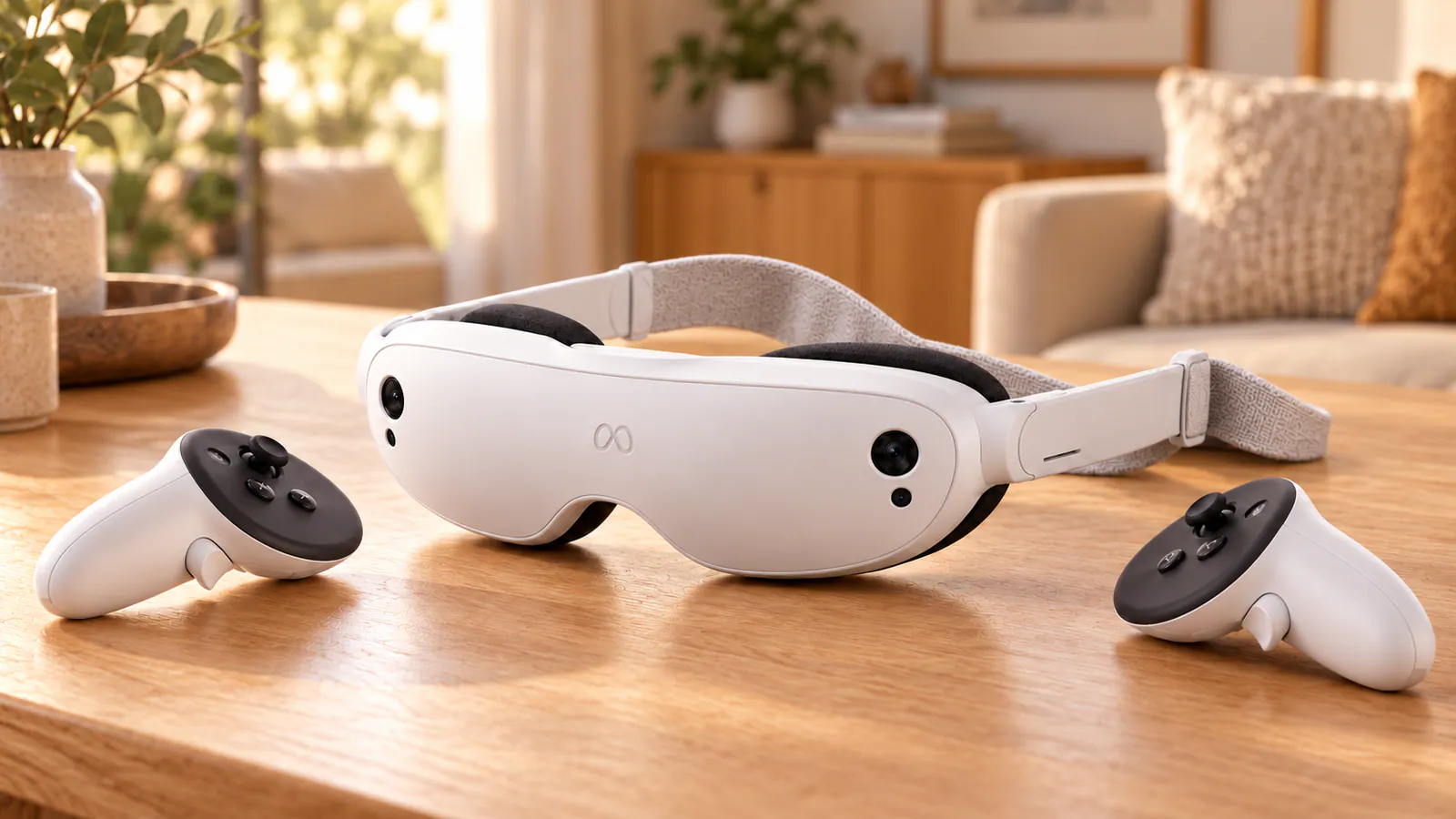
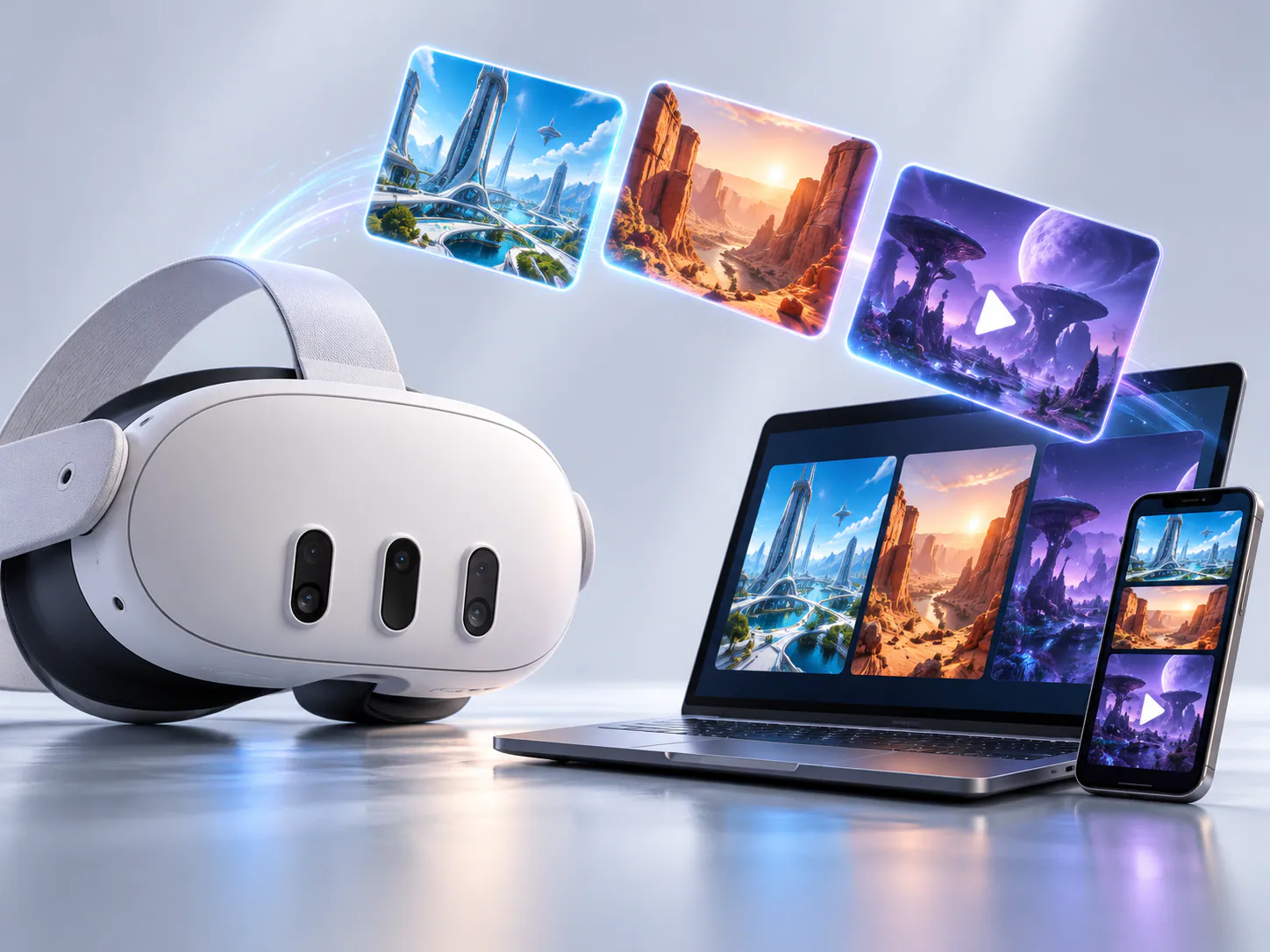
So I decided to build something for it. CaptureHop is a free app for Meta Quest 3 and Meta Quest 3S that lets you download screenshots and videos to your phone, Mac or PC over your home Wi-Fi. Install it on the headset, connect your other device through its browser, and pick the captures you want.
Why getting captures off Meta Quest needed a simpler option
There are already ways to export Meta Quest screenshots and gameplay recordings, including the Meta Horizon mobile app and a USB connection. My frustration was having to think about the process at all. I wanted to open a gallery, find the game I had been playing, and download the files.
Other people run into their own problems with this. In this Reddit discussion about Meta Quest 3S media not syncing, users describe videos that exist on the headset but never appear in the phone app. That does not mean syncing fails for everyone, but it is exactly the kind of extra friction I wanted another route around.
CaptureHop reads the captures stored on the headset and makes them available to a paired browser on the same local network. Your original screenshots and videos go directly from the headset to that device. You do not need a CaptureHop account or a companion app on your phone or computer.
How to download Meta Quest screenshots and videos with CaptureHop
The idea is to do the setup once, then spend your time choosing what to keep.
- Install CaptureHop on your Meta Quest 3 or 3S. Open duuro.net/chd in the headset browser to download the APK. The CaptureHop app page has the installation steps and a computer fallback if your Horizon OS version does not offer Package Installer.
- Open the receiver on your other device. Put it on the same home Wi-Fi as the headset, then visit duuro.net/capturehop/connect in Safari or another browser.
- Scan that screen with the headset. Choose the QR scanner in CaptureHop and look at the code on your phone or computer. Allow the permissions requested during setup. You can choose to remember the browser for future connections.
- Open a game folder and download. Take everything, choose only screenshots or videos, or check individual thumbnails. The first download button follows your selection, and the files arrive in a ZIP.
Keep CaptureHop open and the headset awake until the download finishes. Internet is used for pairing and remembering browsers; the captures themselves travel over your local Wi-Fi. The local connection uses HTTP, so this is intended for your own trusted home network.
Save Meta Quest videos to an iPhone, Mac or PC
On iPhone, use Safari to open the receiver and download your selection. Find the ZIP in Files and tap it to extract the captures. From there, use the share sheet to save compatible pictures and videos to Photos or send them somewhere else. Downloading a ZIP does not automatically put everything in your camera roll.
On a Mac or Windows PC, open the receiver in a browser and download the captures to your usual downloads folder. Extract the ZIP and you have the original files ready for editing, sharing or putting into a review. There is no USB cable involved in the transfer. Android phones can use the browser receiver too.
If your Meta Quest videos are not syncing to the Meta Horizon app, CaptureHop gives you another way to download files that are still on the headset. It does not repair Meta's sync service or recover recordings that have already been deleted.
Find the game, then find the moment
A folder full of filenames is not how I think about my screenshots. I remember which game I was playing.
CaptureHop groups screenshots and recordings by game when their filenames identify it, so you start with game folders instead of one enormous mixed gallery. Inside each folder, you can select previews directly. Captures that cannot be identified still remain accessible; game identification is not perfect.
For anyone wondering where Meta Quest screenshots are saved, CaptureHop looks in the headset's Oculus/Screenshots and Oculus/VideoShots locations. It brings those captures into a gallery so you do not have to browse those paths yourself.
There is also an optional cleanup step. After downloading, check that your saved copies open properly, then select the originals you want to delete from the headset. Deletion has two confirmations. Optional Oculus folder access can avoid an additional headset prompt for supported files, but a download never deletes anything automatically.
A small tool I want to keep improving
CaptureHop is available now as a free public beta for Meta Quest 3 and 3S, distributed as an APK outside the Meta Horizon Store. The app page covers installation, the optional app-library shortcut, updates and the current limitations.
I built it because I wanted getting content off my headset to be quick and straightforward. If you have been looking for a way to transfer Meta Quest screenshots or videos to your phone or computer without a cable, give CaptureHop a try.
And if there is something that would make it more useful for you, get in touch. I would love to know what gets in the way of your own capture workflow.