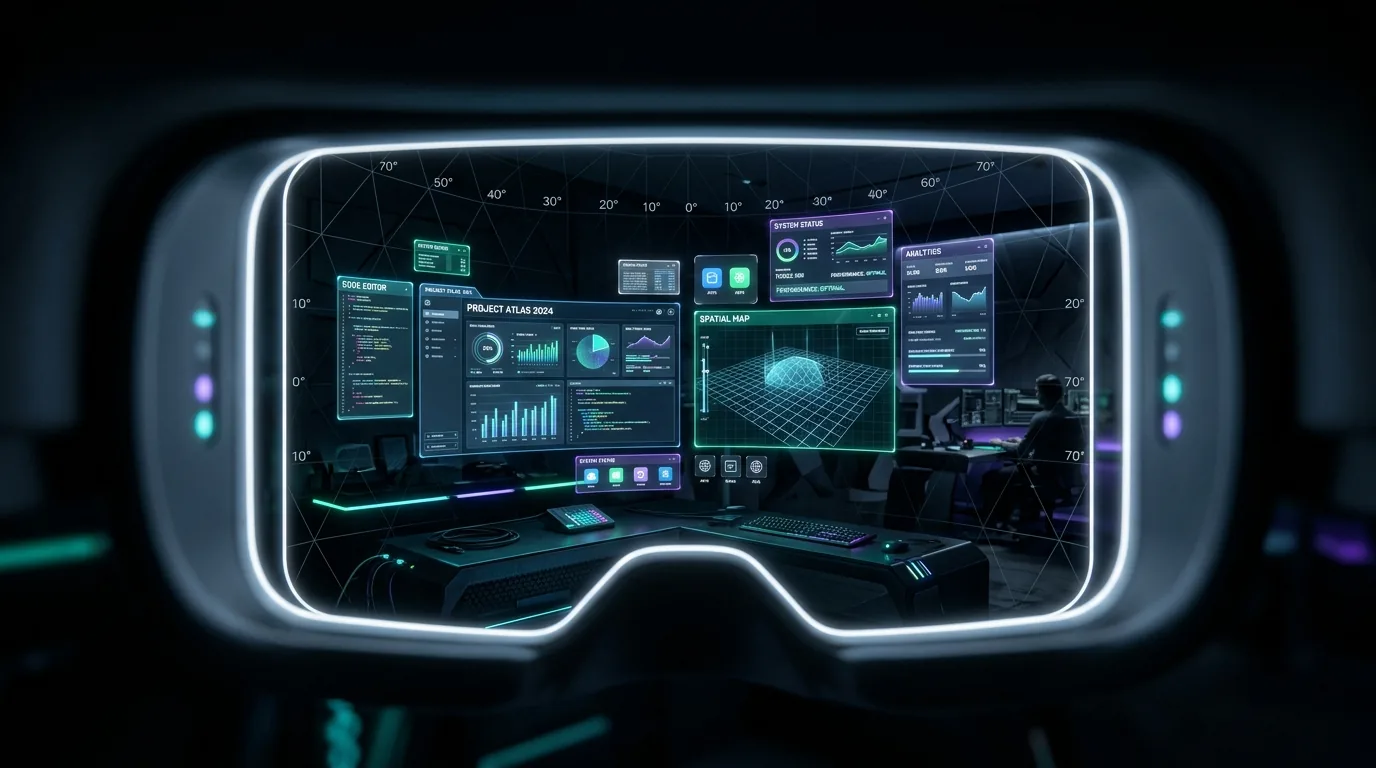
We built an interactive WebXR tool so you can test Meta's newly announced 70° × 66° viewing window on Quest 3, examine multi-window productivity, and see the clarity tradeoff firsthand
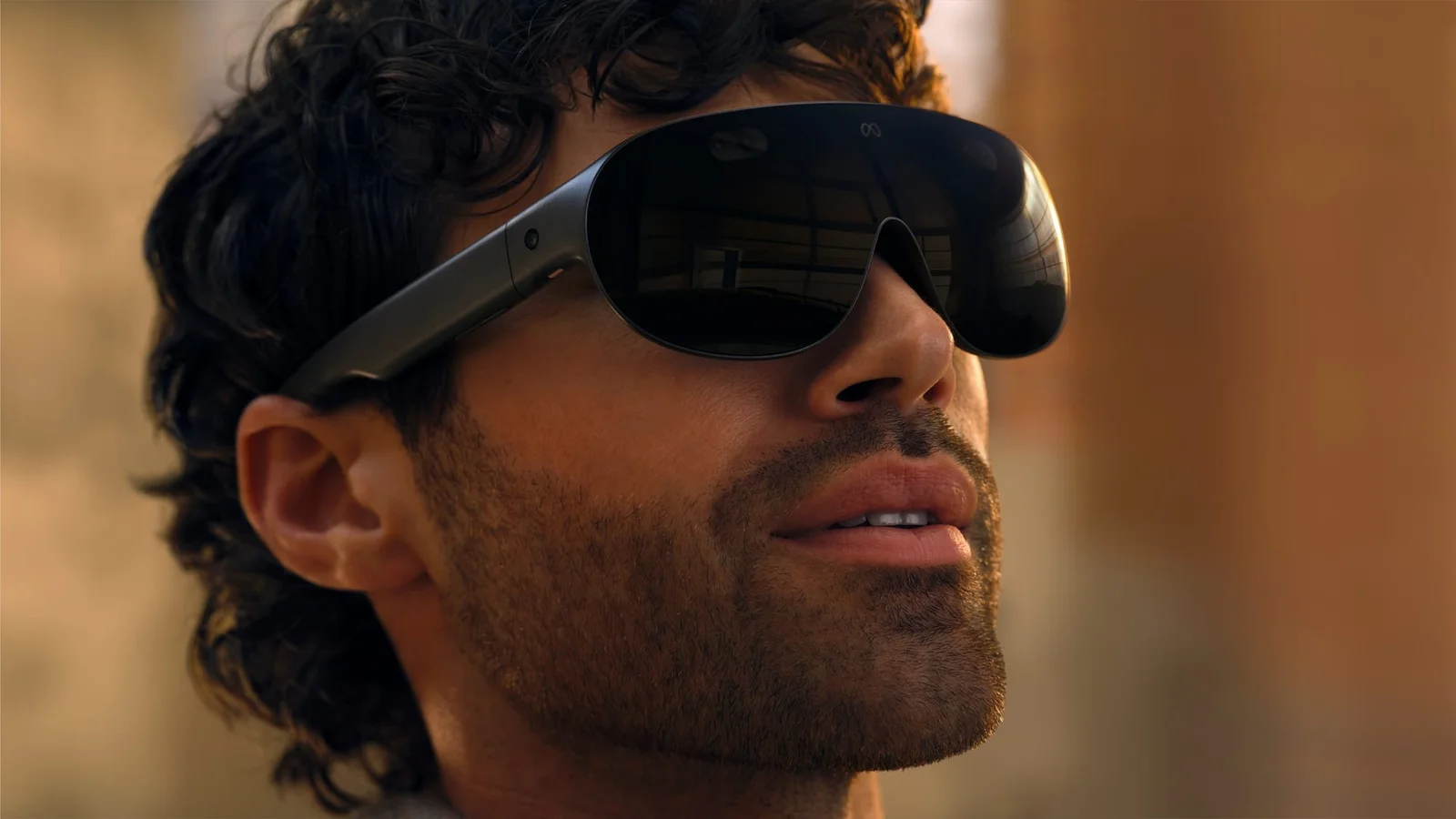
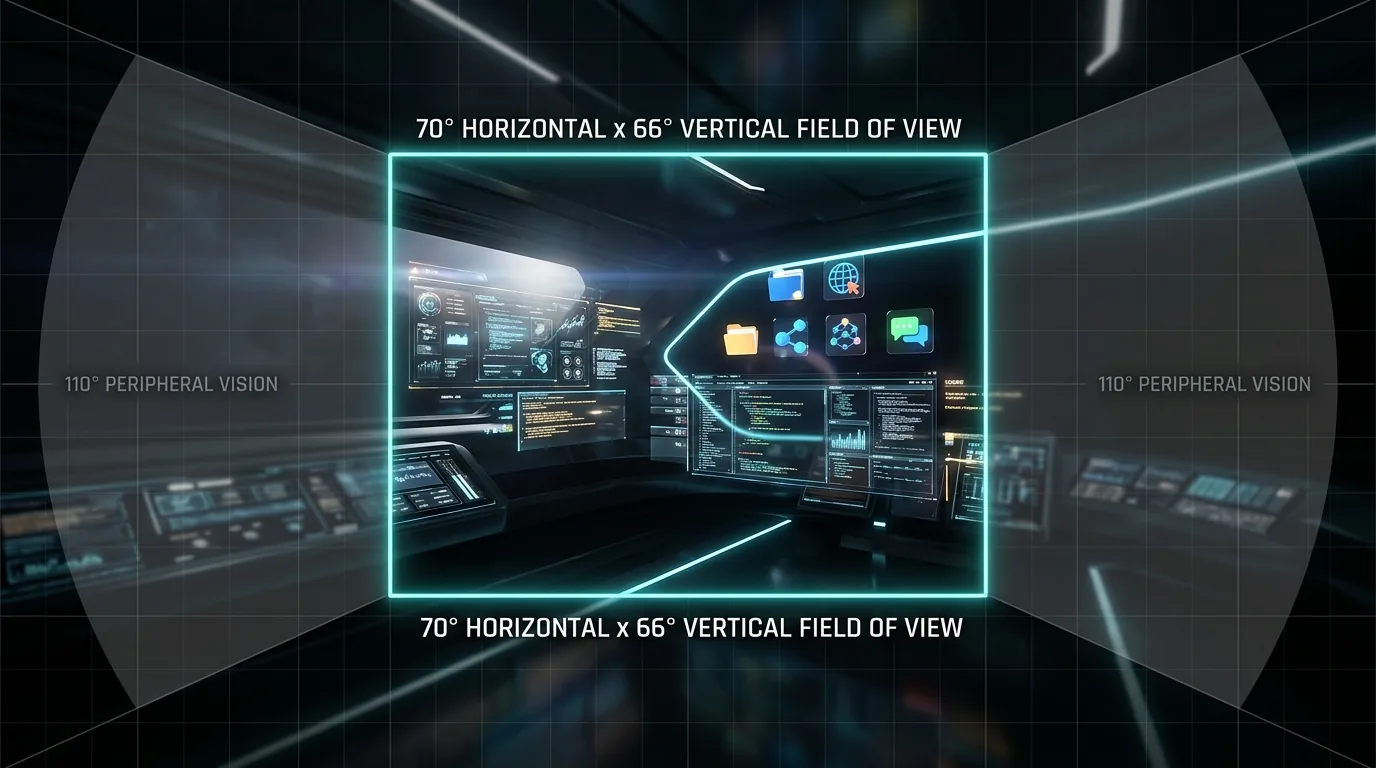
When Meta officially pulled back the curtain on its $1,300 Meta VR Glasses at Connect 2026, the tech community immediately latched onto two contrasting numbers: an ultralight 100-gram visor with razor-sharp 37 PPD micro-OLED panels, paired with a field of view measuring 70 degrees horizontal by 66 degrees vertical.
Compared to the 110-degree horizontal field of view on the Meta Quest 3, 70 degrees sounds like a dramatic reduction on paper. But numbers on a spec sheet do not tell you how a spatial computer actually feels when placed across your eyes. Will productivity windows feel cramped? Can you still watch IMAX movies comfortably? How much peripheral vision do you actually lose?
To explore those questions, we built the Meta VR Glasses FOV Simulator, an interactive WebXR demo that runs in Meta Quest Browser (also accessible at duuro.net/fov). It places a 70° × 66° mask over a 360-degree scene so you can compare viewing angles with a wider headset view. The mask is an approximation: it does not reproduce the glasses' actual optics, brightness, resolution, or open peripheral vision.
How the simulator works inside your headset
The simulator is built with Three.js and custom GLSL shaders. When you tap "Enter Immersive VR" on a supported Quest browser, it starts a WebXR session and places a head-locked mask over the scene. The mask demonstrates the selected angular cutoff; it is not a measurement or reproduction of a headset's physical lens geometry.
The mask uses the selected horizontal and vertical field-of-view values to cover the scene outside that viewing window. Rounded corners and edge styling are visual aids, not a model of waveguide light behavior or lens falloff.
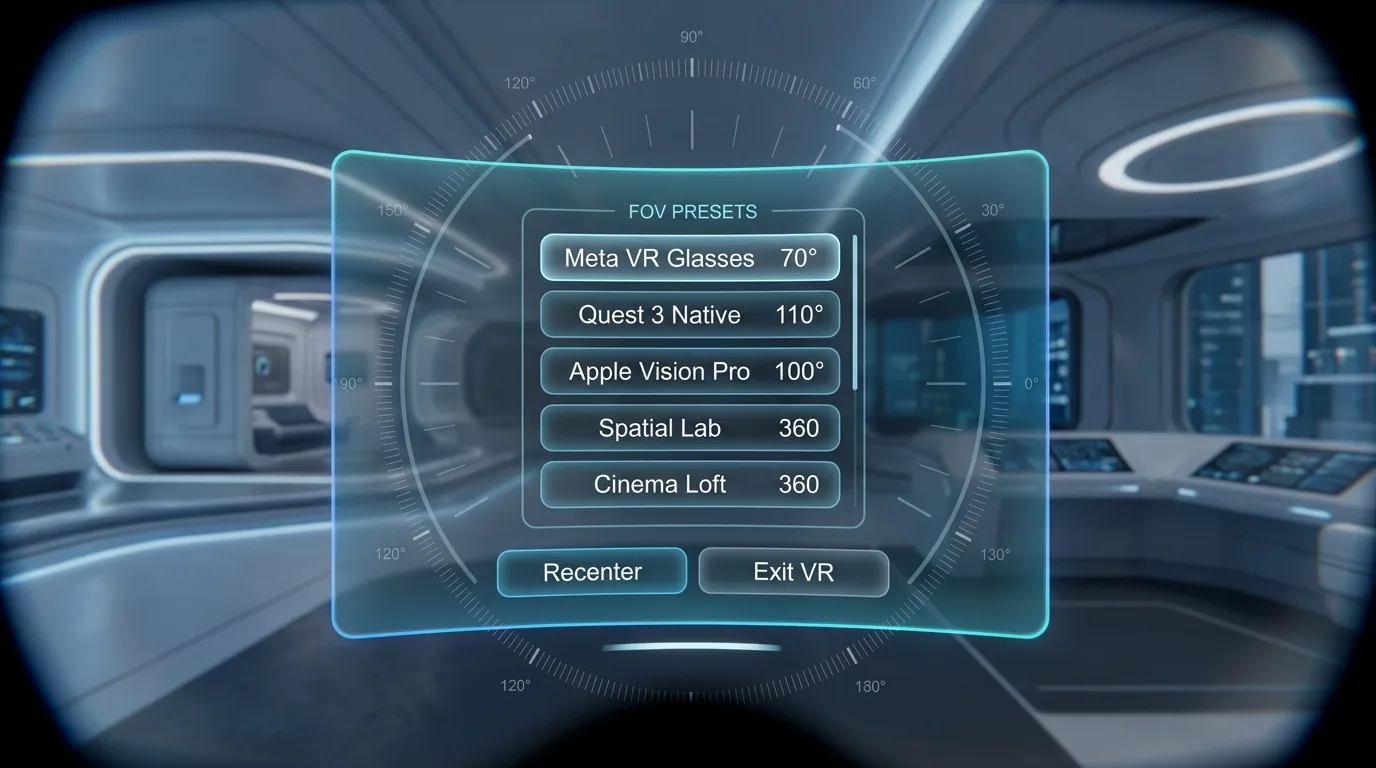
To ensure comfortable in-headset testing, we built a floating spatial interface that hovers at eye level directly in front of your gaze:
- Instant A/B Preset Switching: Swap between the Meta VR Glasses (70° × 66°), Quest 3 Native (110° × 96°), Apple Vision Pro (100° × 73°), and compact smart glasses (50° × 35°).
- One-Click Recenter: Look in any comfortable direction and tap Recenter (or click your controller thumbstick) to snap the interface right in front of your eyes.
- Exit VR Option: Tap the red exit button anytime to cleanly close the WebXR session and return to the browser.
- Quick Restart: A dedicated reset button restores default optical values, returning you to the baseline Meta Glasses configuration.
- Persistent Controls: Hiding the menu collapses it into a floating mini-pill at your lower gaze, and pressing B (right controller) or Y (left controller) instantly brings the full dashboard back.
Five 360-degree testing environments
To evaluate how 70 degrees behaves across different scenarios, the simulator includes five distinct environments:
1. Spatial Multitasking Lab
This environment serves as a calibration holodeck. Circular degree rings are projected at 10-degree increments across your field of view, marked from center (0°) out to 55° on each side (representing Quest 3's 110° horizontal limit).
Five floating workspace windows are placed at realistic ergonomic working distances: a central code editor, an analytics dashboard, a system terminal, a project tracker, and a live spatial map. In the simulator, you can immediately observe how many windows sit within your active focal area before you need to rotate your head.
2. Cinema Loft
A luxury penthouse featuring a curved, floor-to-ceiling virtual movie screen. This environment helps you evaluate whether a 70-degree window is large enough for personal cinema and video streaming.
3. Cyber City Skyline
A sweeping sci-fi metropolis with elevated skyways, flying vehicles, and towering holographic billboards. This setting lets you test spatial depth and visual immersion in an expansive open world.
4. Alpine Vista
A natural mountain landscape with textured foreground rocks, midground evergreen trees, and distant snow-capped peaks, giving an organic sense of real-world scale and environmental cutoff.
5. Passthrough AR Mode
On supported devices, "Enter Passthrough AR" can place the mask over Quest 3 passthrough. The Quest headset still blocks your natural peripheral vision, so this cannot reproduce the open-periphery experience of glasses.
What a 70° viewing window may mean in daily use
The simulator can help picture a narrower viewing window, but it cannot predict exactly how Meta's glasses will look or feel. Actual comfort and image quality depend on the hardware, fit, and display characteristics.
1. Virtual multi-screen productivity
At a standard ergonomic distance of approximately two meters, a virtual 32-inch monitor spans roughly 36 to 40 degrees horizontally. Inside the 70-degree viewing window, one primary monitor sits completely unobstructed in front of you, with the inner borders of secondary windows visible on the flanks.
If you like spreading three wide browser windows side by side, glancing between them will require small neck turns of 15 to 25 degrees. On Quest 3, all three windows can technically stay in your peripheral vision simultaneously, though text on the outer edges is too blurry to read without turning anyway.
Where the Meta VR Glasses pull ahead is visual sharpness. Packing 2412 × 2288 pixels into 70 degrees yields 37 pixels per degree (PPD), compared to Quest 3's 25 PPD. In practical terms, tiny code fonts, spreadsheet cells, and PDF text will look as crisp as a physical 4K desktop monitor, eliminating the subtle fuzziness present on current standalone headsets.
2. Personal movie theater experience
Watching movies is where the 70-degree window feels completely natural. Commercial IMAX seating standards recommend a 60-degree to 70-degree field of view from the prime theater seats. In our Cinema Loft test, a massive virtual silver screen occupies virtually the entire 70-degree frame without awkward edge cutoff.
Combined with 120Hz micro-OLED true blacks, Dolby Vision HDR decoding, and IMAX Enhanced certification, the Meta VR Glasses are positioned to deliver an outstanding personal theater experience without the bulk of a 500-gram headset weighing down your brow.
3. Fast-paced VR gaming
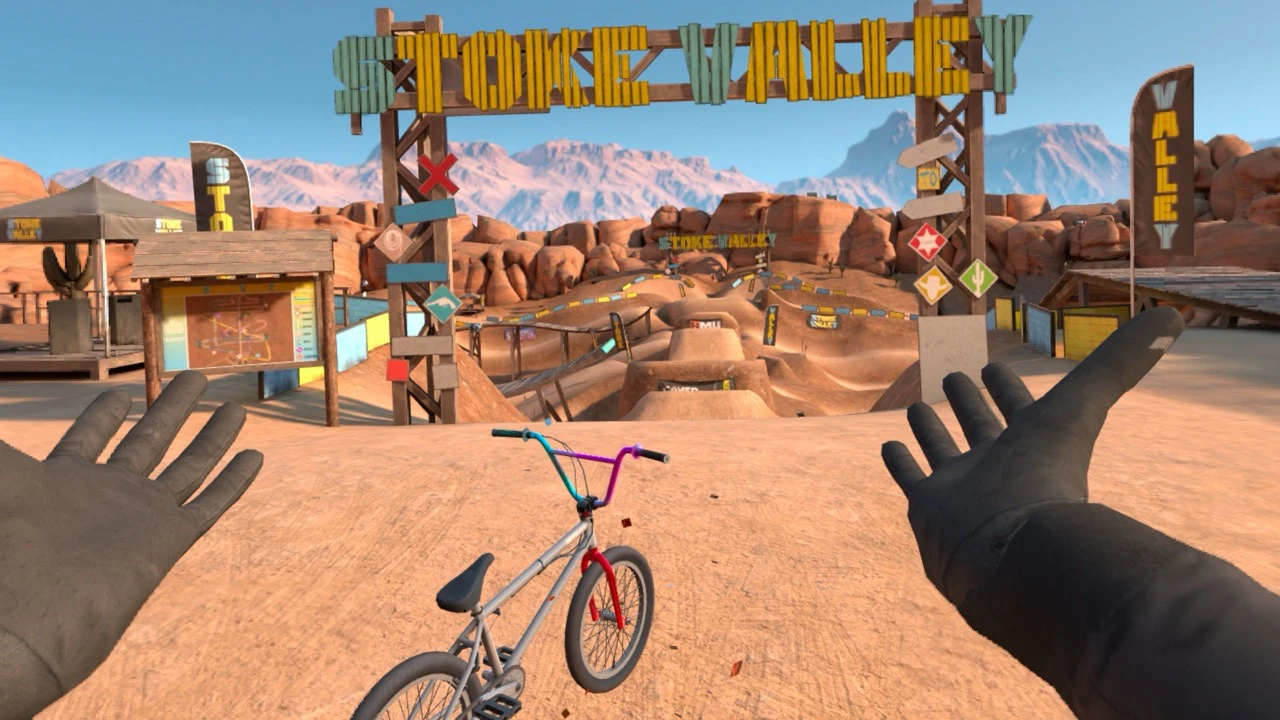
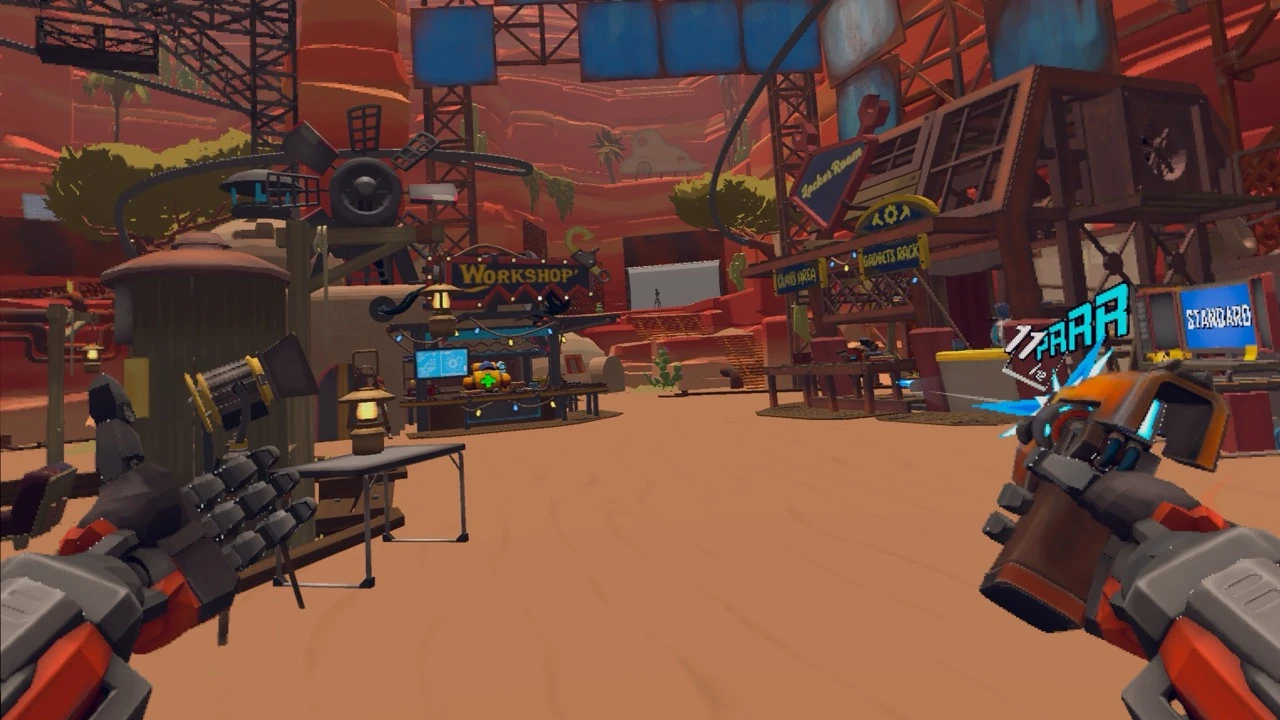
Immersive gaming is where the field of view reduction is most noticeable. In games like Beat Saber, Superhot VR, or tactical first-person shooters, peripheral vision provides crucial subconscious cues about incoming threats.
Inside the 70-degree mask, enclosed VR gaming feels closer to wearing ski goggles or a motorcycle helmet. While the center of your view is exceptionally sharp, you will need to turn your head more frequently to check your surroundings. For dedicated PC VR enthusiasts and action gamers, traditional headsets like Quest 3 or Steam Frame will remain the preferred platform for full immersion.
4. Open-periphery mixed reality
The biggest optical difference between our simulator and the actual Meta VR Glasses is hardware construction. Quest 3 surrounds your eyes with an opaque facial gasket that blocks all real-world light.
The Meta VR Glasses, by contrast, use an open-periphery frame. While digital content is confined to the central 70° × 66° micro-OLED waveguide window, your natural peripheral vision remains completely open to your physical room. You can see your keyboard, reach for a coffee mug, and maintain natural eye contact with people nearby without needing camera passthrough at all times.
Meta VR Glasses vs Quest 3 optical specifications
| Optical Metric | Meta VR Glasses | Meta Quest 3 | Apple Vision Pro | Steam Frame (Valve) |
|---|---|---|---|---|
| Horizontal Field of View | 70° | 110° | ~100° | 110° |
| Vertical Field of View | 66° | 96° | ~73° | 110° |
| Diagonal Field of View | ~87° | ~130° | ~110° | ~138° |
| Display Technology | Micro-OLED (120Hz) | Fast-Switch LCD (120Hz) | Micro-OLED (90/100Hz) | Dual Fast LCD (144Hz) |
| Per-Eye Resolution | 2412 × 2288 | 2064 × 2208 | 3660 × 3200 | 2160 × 2160 |
| Central Pixel Density | 37 PPD | 25 PPD | 44 PPD | ~22–24 PPD |
| Visor Hardware Weight | 100 grams | 515 grams | 600–650 grams | 440 grams |
| Compute Unit | External pocket puck | Integrated on visor | External battery puck | Integrated (Snapdragon 8 Gen 3) |
How to test the simulator right now on your Quest 3
You do not need to install software or configure developer settings to try the tool:
- Put on your Meta Quest 3, Quest 3S, or Quest Pro headset.
- Launch the default Meta Quest Browser from your app library.
- Navigate to duuro.net/fov (or duuro.net/vr-hub/meta-glasses-fov-simulator).
- Tap "Enter Immersive VR" (or "Enter Passthrough AR" if you want to test in your room).
- Accept the standard WebXR permission prompt.
- Use your controller laser pointer or hand tracking to toggle between presets, cycle through the 360-degree environments, and test your natural viewing comfort.
- Use button [A] on your right controller to quickly flip the 70° mask on and off, and tap [✕ EXIT VR] at the top right of the panel when finished.
Meta VR Glasses specifications and field of view measurements reflect official disclosures from Meta Connect on September 24, 2026. The Duuro FOV Simulator is an independent, free WebXR diagnostic tool designed to help the spatial computing community understand emerging display optics.