I bought Half-Life for about €1.50 and played it on my Meta Quest 3, how cool is that?
SideQuest just got the kind of update that makes me want to tell everyone with a Quest to give it a go. I bought Half-Life on Steam for roughly €1.50, installed Lambda1VR through SideQuest, and there I was, inside Half-Life in VR. And it works great.
You can now install SideQuest directly on Meta Quest 3 or Quest 3S, connect Steam, and download the files for supported VR ports without a PC. That means you can skip the old developer-account setup, the USB cable, and the job of copying game files into the right folders yourself. For Half-Life, SideQuest takes care of downloading the files you need for Lambda1VR.
That's the part I'm most excited about. These ports have been around for years, but getting them running could put people off before they ever reached the game. This makes them much easier to try, especially if you own a Quest but don't have a PC.
Here's how to get SideQuest installed, connect Steam with Steam Guard, and get Half-Life running. The €1.50 was a sale price, so check Steam before buying.
Updated October 8, 2026. Instructions checked against SideQuest's official walkthrough and Team Beef's documentation. Cover illustration generated with AI; setup screenshots are from SideQuest VR's official tutorial.
What changed in the SideQuest update?
SideQuest founder Shane Harris outlined the update in an October 6 announcement. You can install SideQuest from inside the headset, add games to your regular Quest library, and let SideQuest download the Steam files needed by compatible VR ports.
If you also want to tweak headset settings, the desktop and Android apps have a new wireless setup option. The 1.4.0 update introduced Meta sign-in with Bluetooth and Wi-Fi pairing, and 1.4.1 followed with fixes to make that connection more reliable.
You can choose how much of that setup you need:
| What you want to do | Which setup to use |
|---|---|
| Browse SideQuest and install supported apps on your Quest | Install SideQuest through Quest Browser and Package Installer |
| Download Steam files for a supported standalone port | Use the in-headset app, then sign in to the Steam account that owns the game |
| Launch a SideQuest game from your normal Quest library | Add its library shortcut through SideQuest |
| Change advanced headset settings or use SideQuest's game optimizer | Complete the additional desktop or Android connection setup |
The Steam integration doesn't turn your whole Steam library into native Quest games. The game needs a port made to run on the headset, such as Team Beef's Lambda1VR. SideQuest makes installing that port and its files easier.
What you need before starting
- A Meta Quest 3 or Quest 3S with internet access and enough free storage for the port and its game data.
- Access to Quest Browser and the headset's Files app.
- The latest SideQuest APK from SideQuest's official download link.
- A Steam account that owns the correct original game: Half-Life.
- A phone with the official Steam Mobile app and Steam Guard ready if you want to use QR sign-in.
Lambda1VR runs on the Quest itself, so you don't need a gaming PC. You'll use your phone to approve the Steam login. If you haven't set that up before, Valve's Steam Mobile page explains how it works.
Give your headset a charge before starting, and leave a little more storage free than the download requires. The amount you'll need depends on the game.
How to install SideQuest on Meta Quest 3 or Quest 3S without a PC
If you'd rather watch the steps, SideQuest's official video is below. Jump to 0:37 for installation, 7:04 for Steam, or 8:41 for Half-Life.
1. Download the SideQuest APK inside the headset
- Open Meta Quest Browser.
- Visit sdq.st/go and let the APK finish downloading.
The APK is the app's installer file. Next, you'll open it to install SideQuest.
2. Open the APK with Package Installer
- Find the APK in the browser's downloads or in Files → Downloads/Recent.
- Open its three-dot menu → Open With → Package Installer.
- If a permission prompt appears, select Settings, turn on Allow from this source, and return to the installer.
- Choose Install, then Open when it's finished.
The menus may look slightly different depending on your headset software. Look for Package Installer under the downloaded file's Open With options.
3. Add SideQuest to your Quest library
- Select Add to library when SideQuest prompts you.
- In the window that opens, choose three-dot menu → Add shortcut to library.
SideQuest will then appear alongside your other Quest apps.
Missed the prompt? You can add shortcuts later from SideQuest's Apps section. Open an installed app's three-dot menu, select Add to Quest library, and follow the same steps.
4. Allow SideQuest to install the games you choose
- Start installing your chosen app through SideQuest.
- If Allow from this source appears again, enable it for SideQuest, then go back to finish the install.
- Follow the progress in the Sideload tab and wait for the installation to finish, not just the download.
How to connect Steam to SideQuest with Steam Guard
You don't even have to type your Steam password with a VR keyboard. SideQuest lets you scan a QR code and approve the login through Steam Guard on your phone.
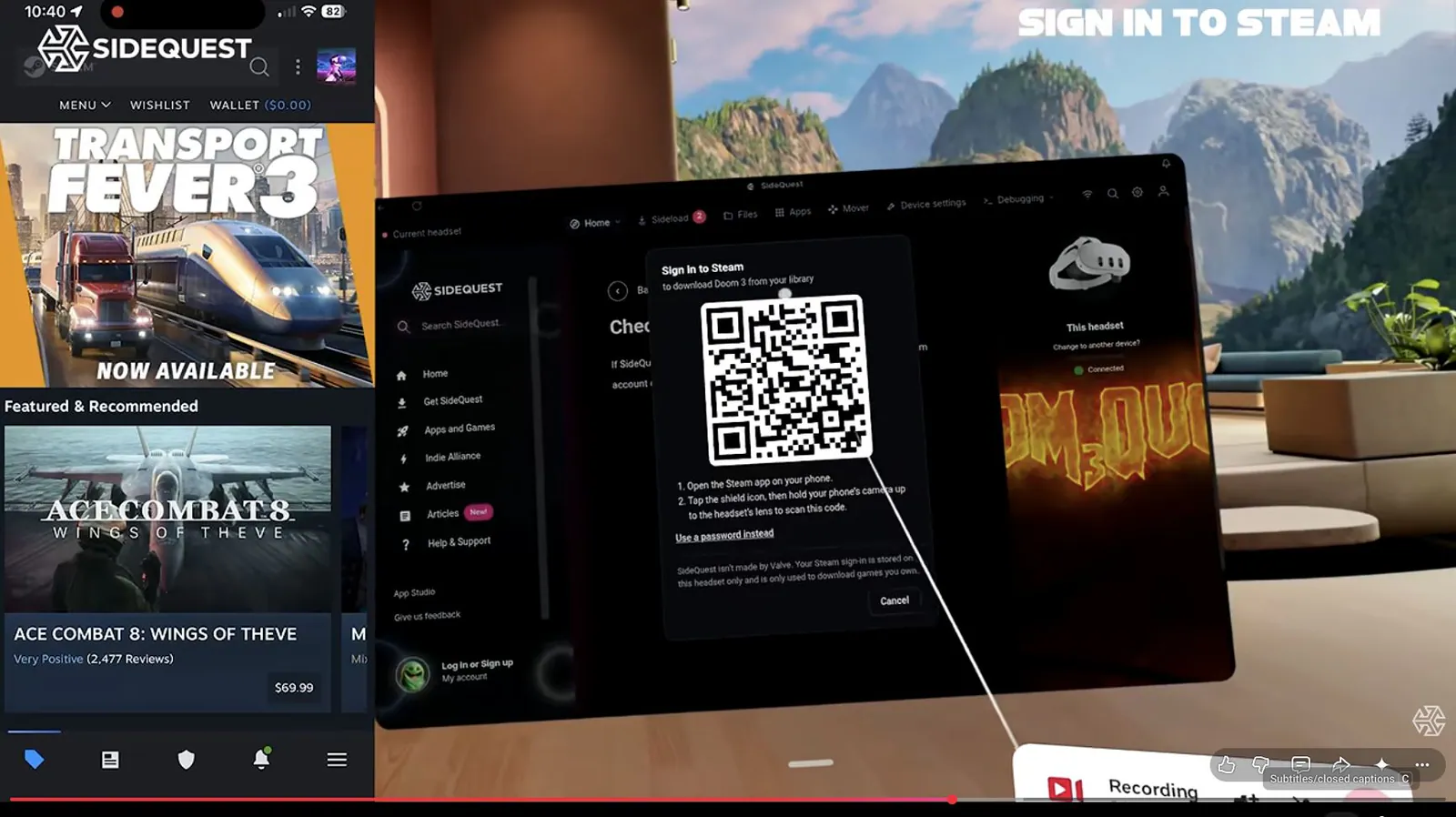
Steam Guard sign-in, captured from SideQuest VR's official tutorial at 7:35. When signing in, scan the code displayed on your own headset.
- Open a supported port's listing and select Get it from Steam when offered. SideQuest may first request file/storage access so it can put the game data on your headset.
- At the Steam sign-in dialog, open Steam Mobile on your phone and select the Steam Guard shield to access the QR scanner.
- Scan the QR code displayed inside your headset. SideQuest's tutorial shows holding the phone camera near a headset lens. Keep the display awake; covering the headset's proximity sensor briefly can help while you scan.
- Review the sign-in request on your phone and approve the one you just initiated.
- Return to SideQuest. It will check that you own the game and find the files it needs.
Approving the QR request signs SideQuest into Steam, so check that the request on your phone is the one you just started. According to SideQuest's login dialog, your sign-in stays on the headset and is used to download games you own.
To check which Steam account you're using, select the gear icon in SideQuest. You'll see the account name there, or an option to sign in. Logging into the SideQuest website doesn't automatically connect Steam.
How to play Half-Life VR on Meta Quest 3 and 3S with Lambda1VR
1. Make sure you own the correct Half-Life
You want the original Half-Life, released in 1998, on the Steam account you connected. Half-Life: Source is not compatible with Lambda1VR, according to Team Beef's project documentation.
Lambda1VR provides the VR version of the engine, but it still needs Half-Life's game files. If you already own the original on Steam, you're set. Otherwise, check the Half-Life store page for the current price in your region.
2. Find Lambda1VR in SideQuest and install it
- Search for Lambda1VR in SideQuest, or open the Lambda1VR listing.
- Select Sideload or Sideload now.
- Follow the installation prompts and wait for it to finish.
SideQuest's October tutorial shows a demo you can try after installing the port. For the full game, you'll need to download your Steam files in the next step.
3. Let SideQuest check your Steam copy
- Select Get it from Steam and sign in if you haven't already.
- If you don't own Half-Life on that account, use Buy it on Steam to open the matching store listing.
- After buying it, return to SideQuest and select Get it from Steam again.
Owning it on that account is enough; there's no need to download the PC version on a computer first.
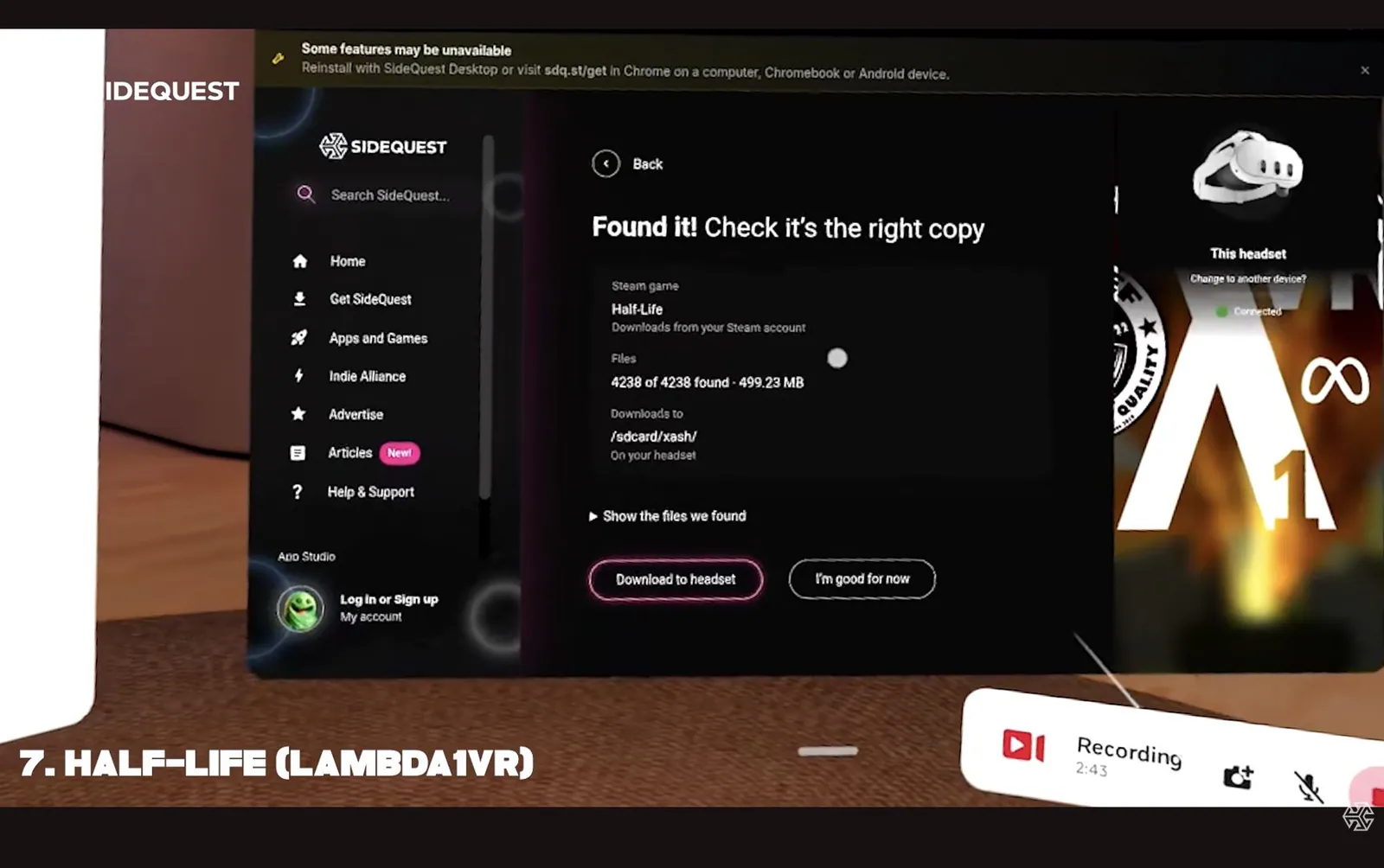
Half-Life file confirmation in SideQuest VR's tutorial at 10:36. The download shown here contains 4,238 files and comes to about 499 MB. Check the size on your own install screen before starting.
4. Download the game files to the headset
- Check that the confirmation names Half-Life.
- Select Download to headset.
- Leave SideQuest open until the transfer finishes.
Previously, you'd have to find Half-Life's valve folder on your computer and copy it into the headset's xash folder. SideQuest now handles that for you.
Half-Life has thousands of small files, so don't worry if this takes longer than you'd expect from a roughly 500 MB download. Keep SideQuest open and wait for it to finish before starting the game.
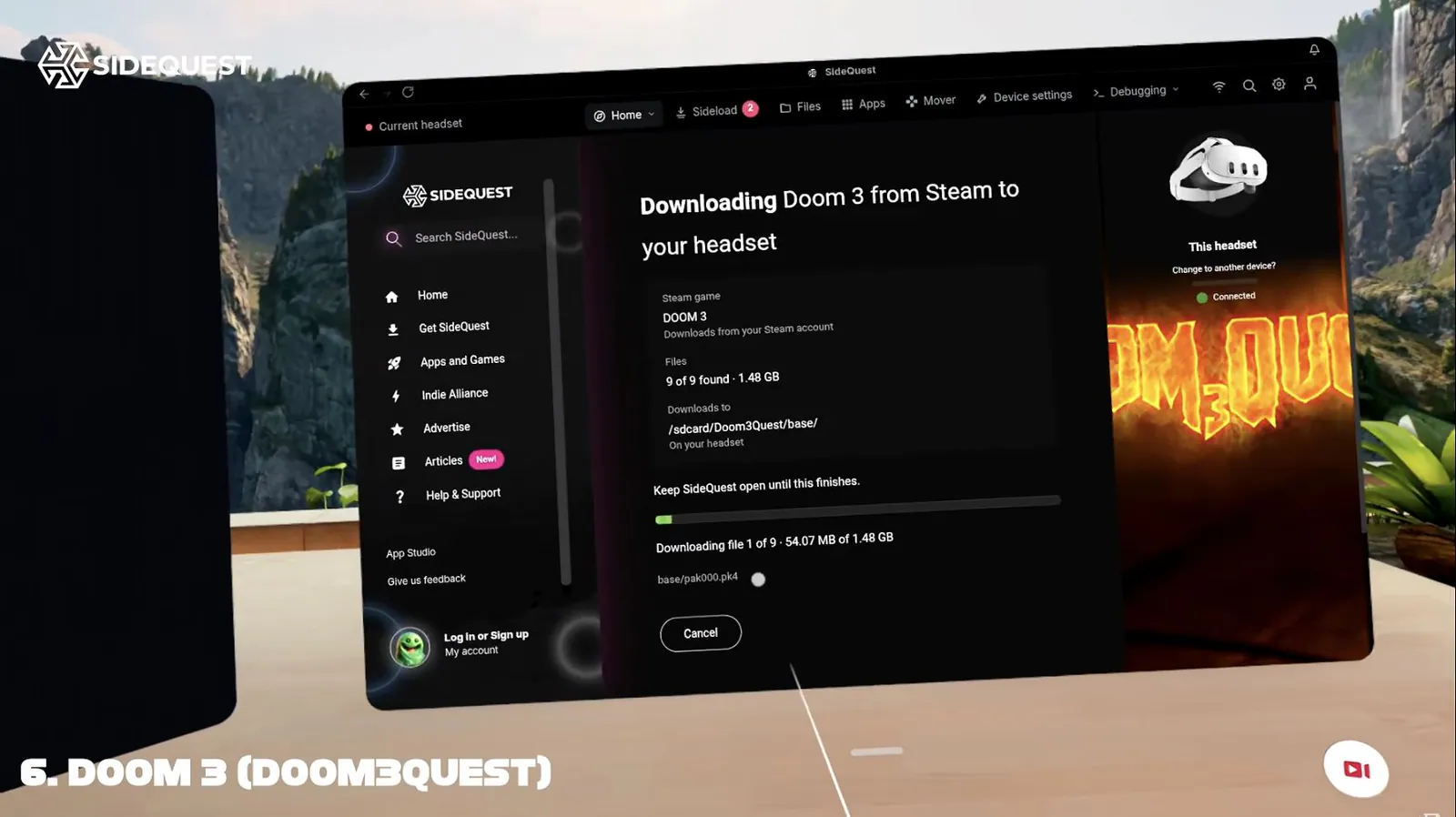
Doom3Quest downloading its Steam files in SideQuest VR's tutorial at 8:24. Half-Life uses the same process.
5. Launch Lambda1VR and add its shortcut
- Once the port and its Steam files have finished installing, launch Lambda1VR.
- To add a library shortcut, go to Apps → the game's three-dot menu → Add to Quest library in SideQuest.
- Follow the prompt, then choose three-dot menu → Add shortcut to library in the window that opens.
That's it. This was how I got Half-Life running, and getting into the game so easily is what sold me on the update.
First-launch controls and comfort
Half-Life was built for a monitor, so take a moment to learn the VR controls before committing to a long session. Team Beef's control reference lists the defaults below. If a button behaves differently, check which control scheme you have selected.
| Action | Default control |
|---|---|
| Move and strafe | Off-hand thumbstick |
| Turn | Dominant-hand thumbstick left/right |
| Interact/use | Click dominant-hand thumbstick |
| Reload | Quick click of dominant-hand grip |
| Open menu | Off-hand menu button |
| Toggle the cut-scene screen mode | Off-hand Y/B, depending on handedness |
Try the screen mode during the opening tram sequence if the movement is uncomfortable. Start with a short session and stop if you feel unwell. I'd get the game running with its default settings before adding texture packs or tweaking performance. It's much easier to work out what went wrong when you've only changed one thing.
Which other games can use this approach?
Start with SideQuest's Game Ports collection, then read the individual port's requirements. SideQuest's official video demonstrates Doom3Quest as well as Lambda1VR. Pay attention to which edition each port needs before you buy anything.
For example, the Doom3Quest project specifies the original Doom 3 rather than the BFG Edition for its game data. Use the Steam link on the port's listing to help you find the right version.
I've tried Half-Life myself; for anything else, check the port's instructions before jumping in. If you're looking for more to play afterward, browse our best VR games of 2026 so far or follow the VR games release calendar.
Troubleshooting SideQuest, Steam and Lambda1VR
If you get stuck, start with the step that failed. Most of the checks below take only a moment.
| Problem | What to check first |
|---|---|
| The APK downloaded, but SideQuest isn't installed | Open the APK in Files using Open With → Package Installer and finish the installation |
| Package Installer is missing from Open With | Check headset software updates and SideQuest's current setup guidance; use the official desktop/Android route if the direct method isn't available on your headset |
| Installing an app is blocked | Check the permission prompt and enable Allow from this source for the app handling the installation |
| Steam's QR code won't scan | Keep the headset display awake, use Steam Mobile's Steam Guard scanner, and try again with the current code |
| Steam says you don't own Half-Life | Check the Steam account name and confirm that account owns the original Half-Life, not only Half-Life: Source |
| You just bought the game, but SideQuest still hasn't found it | Confirm the Steam purchase completed, return to the port, and repeat Get it from Steam |
| Half-Life opens a demo or fails to launch the full game | Check that the Steam data download completed as well as the Lambda1VR app installation |
| Download progress is slow | Keep SideQuest open, check Wi-Fi and free storage, and allow for the large number of small files |
| The app is installed but missing from the normal library | Add the library shortcut through SideQuest's Apps menu |
| SideQuest says some features are unavailable | That message can refer to advanced device controls. Check the game's installation status before assuming the install failed |
Half-Life still crashes after the download
Check the current Lambda1VR listing and official installation notes before changing files. Incorrect or missing game assets are a known cause of launch problems. If you had Half-Life installed before or have added mods, mention that when asking for help. Those older files may be relevant.
Half-Life's data normally lives in xash/valve, with saves in xash/valve/save. Back up your saves before reinstalling or replacing files, and be careful with older tutorials: many were written for the manual installation method.
Still stuck? Include the error message, port name, SideQuest version and the step you reached when you contact SideQuest support. If the installation worked but something goes wrong inside the game, start with the port's own support documentation.
Frequently asked questions
Do I need developer mode to install SideQuest now?
No, you can follow the installation steps above without enabling it. If you want advanced headset settings or the game optimizer, you'll need to complete SideQuest's additional connection setup.
Do I need a PC to play Half-Life through Lambda1VR?
No. The game runs on the Quest, and SideQuest downloads its files from Steam. You'll need to own the original Half-Life and be online during setup.
Can I connect Steam without entering my password?
Yes. Scan SideQuest's login QR code with Steam Mobile and approve the request through Steam Guard. That signs you in without typing your password on the headset.
Can I play Steam games on Meta Quest 3 without a PC?
Some games, including the original Half-Life, work through standalone Quest ports. SideQuest can download the Steam files those ports need. Connecting Steam won't make the rest of your PC library run on the headset, though; each game needs a compatible port.
Is this the same as Steam Link or SteamVR streaming?
No. Lambda1VR runs Half-Life on the headset itself. Steam Link streams a game that's running on your computer.
Is Half-Life free with Lambda1VR?
The full game isn't included. You'll need to own Half-Life on Steam, even if you've already installed the port or tried its demo.
Does Half-Life: Source work?
No. Team Beef explicitly says it is incompatible with Lambda1VR. Choose the original Half-Life linked in this guide.
Do I have to buy Half-Life again if I already own it?
No. Just connect the Steam account that owns the original Half-Life.
Can I keep using my existing SideQuest setup?
Yes. Update SideQuest and look for the new Steam and library shortcut options. Back up any existing saves before reinstalling games or replacing their files.
Why this update matters
I love that I can now recommend Half-Life on Quest without following it up with a list of folders someone needs to copy. Buy the game, install the port, let SideQuest download the files, and play. That's a big improvement.
Team Beef and the other developers making these ports deserve plenty of credit. SideQuest has made their work easier to get into, and I hope that brings more people to it. If you've been putting off trying Half-Life in VR because the setup looked like a hassle, now's a good time to give it a go.