
Great moments.
Off the headset.
Download Meta Quest 3 or 3S screenshots and videos to your phone, Mac or PC over home Wi-Fi. Browse by game. Keep original files. Make room for what’s next.
Free public beta · v0.19 · 1.4 MB APK
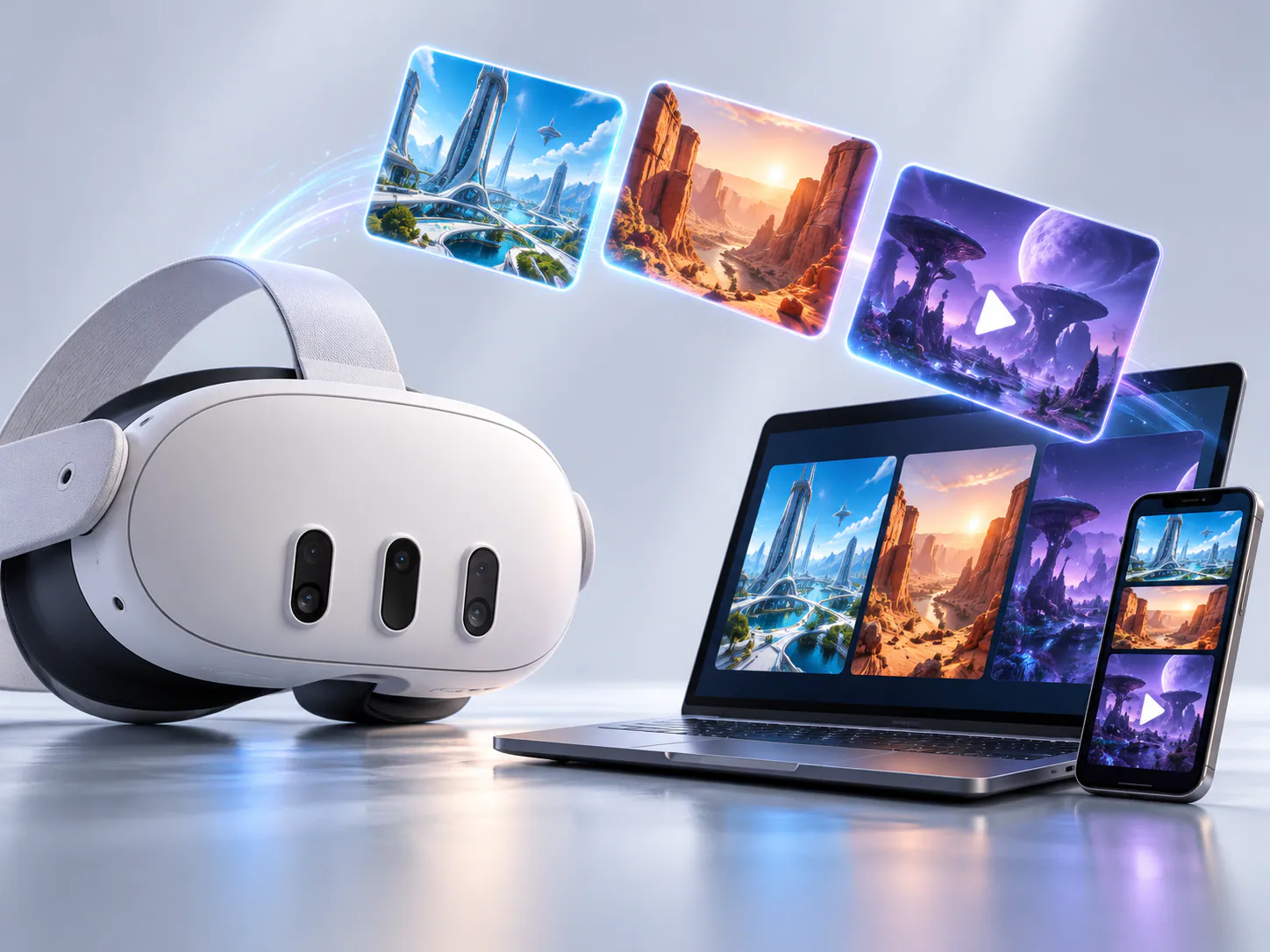
Meta Quest 3 / 3S → iPhone · Android · Mac · Windows
Every game. Its own folder.
Find your best shot without digging through filenames.
Pick a few. Or take them all.
Original screenshots and recordings, downloaded in a ZIP.
Keep the memories. Lose the clutter.
Remove reviewed originals after checking your saved copies.
SET UP ONCE. KEEP PLAYING.
How to download
Meta Quest captures.
Four steps. You need a Meta Quest 3 or 3S, another device and the same home Wi-Fi.
Already installed? Connect your device ↗- 01
Download inside your headset.
Open duuro.net/chd in Meta Quest Browser and let the APK finish downloading. Start with this direct headset method: no computer or Developer Mode is needed when your Horizon OS version offers Package Installer in Files.
- 02
Install on Meta Quest 3 or 3S.
In Files → Downloads, open the APK’s three-dot menu and choose Open with → Package Installer. If asked, open Settings, enable Allow from this source and return to install. Open CaptureHop, select Get started and allow capture access. Find it later in Library → Unknown Sources, or add the optional library shortcut below.
Want it in your main app library? Follow the optional guide ↓ - 03
Connect your other screen.
Put both devices on the same home Wi-Fi. Open duuro.net/capturehop/connect on your phone, Mac or PC. Choose Scan QR code during CaptureHop setup and look at that screen’s code. To pair again later, use More → Connect device → Scan device screen in the headset app.
- 04
Your captures, ready to go.
Open a game folder on your receiving device, and download everything or check a few favorites. Choose Remember this browser to reconnect next time.
OPTIONAL · AFTER INSTALLATIONAdd CaptureHop to your app libraryA shortcut beside your games, so it’s easier to find next time.
Install or update to CaptureHop 0.19 or later, then save our own launch shortcut. No SideQuest needed. Finish active downloads before switching to the browser.
Open the shortcut guide
In CaptureHop on your Meta Quest 3 or 3S, open More → Add to app library. It’s also offered after pairing. Select Open launch page.
Use the browser menu
The branded CaptureHop launch page opens in Meta Quest Browser. Open the browser’s three-dot menu at the top right.
Add it to your library
Choose Add shortcut to library, check the CaptureHop name and icon, then select Add.
Find it beside your games
Return to your app library and select the CaptureHop tile. Tap Open CaptureHop on its launch page and confirm Open if asked.
GOOD TO KNOW
A few quick answers.
A small utility. Clear expectations.
How do updates work?
CaptureHop checks for updates when you open the app, at most once a day. Use More → Settings → Check for updates for a manual check. New releases show a dismissible notice with release notes; Update opens the APK download in Meta Quest Browser, where you approve installation. What’s new appears once after an update, and Version history stays available in Settings, including offline. Users on builds older than 0.18 need to install the latest APK manually once to get this feature.
How do I transfer Meta Quest screenshots and videos to my phone or PC?
Install CaptureHop on your Meta Quest 3 or 3S, keep both devices on the same home Wi-Fi and open duuro.net/capturehop/connect on the receiving device. Scan its QR code with the headset to pair. Open a game folder in the receiving browser, select captures and download them as a ZIP. No companion app is needed on iPhone, Android, Mac or Windows.
How do I save Meta Quest videos to an iPhone?
Open the receiver in Safari and download your selected screenshots or videos. The ZIP arrives in Files; tap it to extract the originals. Use the share sheet to save compatible images or videos to Photos. Downloads do not automatically appear in your camera roll.
Can I download Meta Quest captures to a Mac without a cable?
Yes. Open the receiver in a browser on your Mac, pair it with CaptureHop and download your captures over home Wi-Fi. Extract the ZIP to use the original screenshots and gameplay recordings. The same browser workflow works on a Windows PC.
Can I download videos if the Meta Horizon app is not syncing?
CaptureHop offers a separate local download route for screenshots and videos that are still stored on your headset. It does not need those captures to sync to the Meta Horizon app first. It does not repair cloud syncing or recover deleted files.
Where are Meta Quest screenshots and videos saved?
CaptureHop reads the headset’s Oculus/Screenshots and Oculus/VideoShots locations. It groups captures by game when their filenames identify it; unidentified captures stay accessible too. You can download a whole folder, just screenshots, just videos or individual selected files.
Are my screenshots uploaded anywhere?
Capture files travel directly from your Meta Quest 3 or 3S to your browser over your local network. Internet is used for QR pairing and remembering browsers. No account is required. The local transfer connection uses HTTP, so use your own trusted home Wi-Fi.
Can Meta Quest 3 and 3S scan the code?
The headset camera scanner is intended for Meta Quest 3 and Meta Quest 3S. Other connection options let you scan a code inside the headset with a phone, or type the displayed local address. Camera and folder-picker availability depend on Horizon OS.
Can I clear space after downloading?
Yes. Select the originals you want to remove, review the selection and confirm that you checked your saved copies. Optional Oculus folder access can remove the extra headset confirmation for supported captures. Downloads never delete anything automatically.
Do I need to keep the headset on?
Keep CaptureHop open and your Meta Quest 3 or 3S awake until downloads finish. Removing the headset can let Horizon OS sleep or suspend the app and interrupt the connection.
Do I need Developer Mode?
Not for direct APK installation on Horizon OS versions that offer Files → Open with → Package Installer. CaptureHop’s QR pairing and transfers do not use ADB. Developer Mode is needed for the computer/ADB installation fallback. This beta still needs a physical-headset check with Developer Mode switched off. CaptureHop itself has no account or login.
What if Package Installer is missing?
Check for Horizon OS updates first. If Files still has no Open with → Package Installer option, use SideQuest, Meta Quest Developer Hub or ADB on a computer. For that fallback, verify a Meta developer account, join or create a developer team, then turn on Developer Mode in the Meta Horizon phone app → your paired headset → Headset Settings → Developer Mode. Approve USB debugging in the headset when prompted. Downloading the APK alone does not install it. This beta is distributed outside the Meta Horizon Store.Meta’s Developer Mode guide for the computer fallback ↗
CaptureHop by Duuro Plays · Public beta 0.19 · Updated 2026-10-29
Why I built CaptureHop for Meta Quest captures →