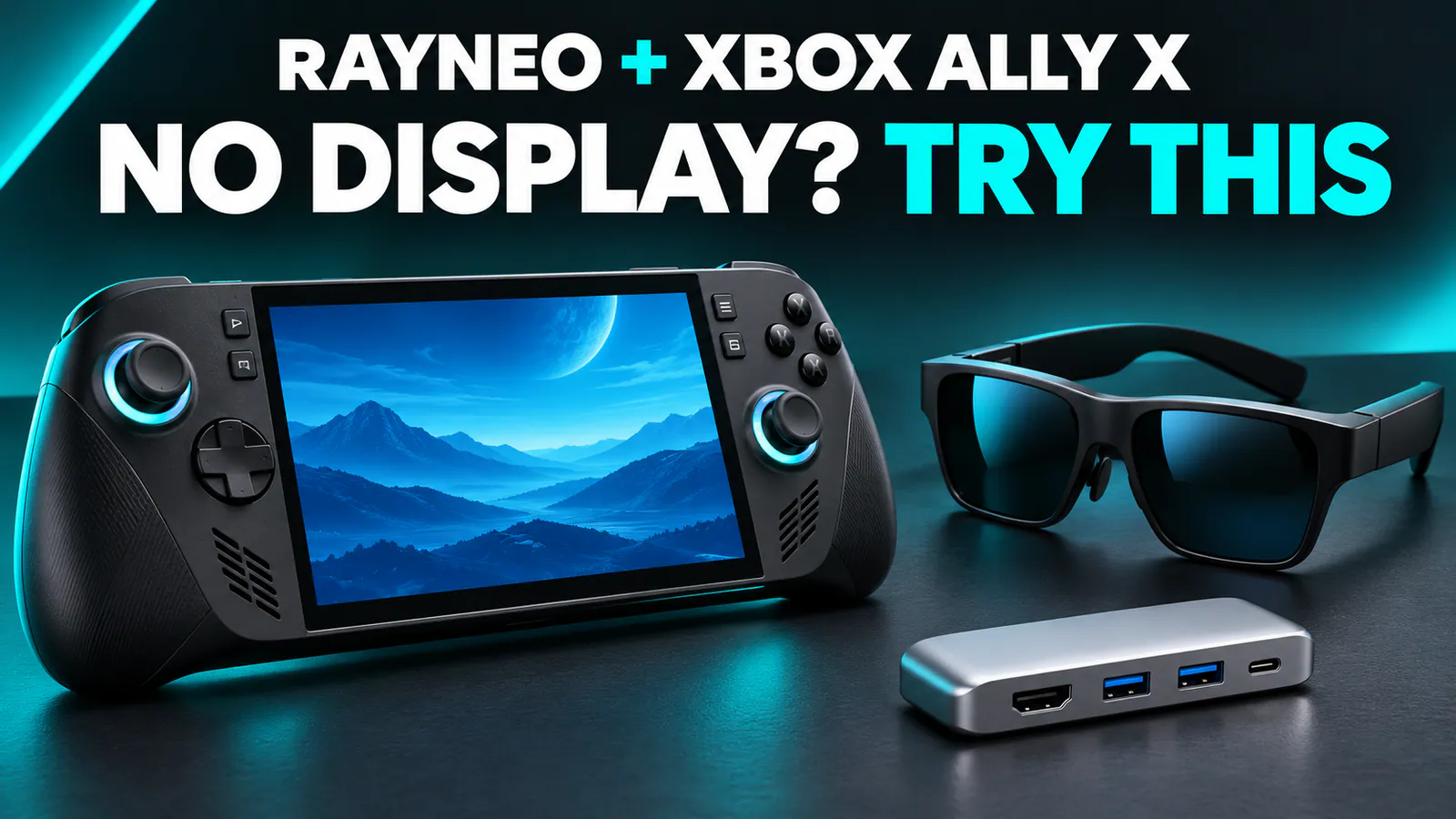
RayNeo AR glasses not working with your ROG Xbox Ally X after an update? Plug a USB-C dock into one port, then connect the glasses directly to the other USB-C port. Once the glasses display an image, you can unplug the dock. That got my glasses working again, and I recorded the whole thing below.
After a recent ROG update broke USB-C power delivery on my ROG Xbox Ally X, connecting my RayNeo glasses directly stopped bringing up a picture. This is a temporary workaround to get the glasses working while we wait for ROG to fix the issue in another update.
Watch the RayNeo and ROG Xbox Ally X fix
What you need
- Your ROG Xbox Ally X and RayNeo AR glasses.
- The USB-C video cable you normally use with the glasses.
- A USB-C dock or hub. I used a cheap dock in the video; I haven't tested every model.
How to fix RayNeo glasses not displaying on ROG Xbox Ally X
- Plug the USB-C dock into one of the Ally X's USB-C ports. Leave the other port free for the glasses.
- Connect the RayNeo glasses directly to the remaining USB-C port on the Ally X. The dock and glasses occupy separate ports on the handheld.
- Wait a few seconds for the glasses to activate and show the picture. In my video, the handheld's screen goes dark as the glasses take over the display.
- Unplug the dock once the glasses are working. Keep the glasses connected. Mine continued displaying the game after I removed the dock.
The connection order matters here: dock first, glasses second, then remove the dock after the picture appears. You aren't routing the glasses' video through the dock.
Is this a permanent fix for the update?
No. This is a temporary workaround for the USB-C power delivery issue introduced by the ROG update. It gets the glasses displaying an image again on my setup, but it doesn't repair the underlying issue. We're still waiting for ROG to fix that in a future update.
If the same symptom returns, try the sequence again. You don't need to roll back a BIOS or reinstall Windows to follow these steps.
RayNeo connection fix FAQ
Do the glasses plug into the dock?
No. Plug the dock into one USB-C port on the ROG Xbox Ally X and the glasses directly into the other. Once the picture appears, remove the dock while leaving the glasses connected.
Will any USB-C cable work?
Use the glasses' supplied cable or a compatible USB-C video cable. A charging-only cable isn't enough: RayNeo's compatibility guide explains that a direct connection needs DisplayPort over USB-C.
Will this work with other RayNeo glasses or other AR glasses?
I expect this workaround to work across RayNeo's USB-C DisplayPort glasses, and it may also help other AR glasses that use DisplayPort over USB-C. I've demonstrated it with my RayNeo glasses and ROG Xbox Ally X, rather than testing every model or brand.
This method requires two USB-C ports on the handheld, so it isn't the same procedure for the original ROG Ally with its single USB-C port.
For more on the glasses, see our RayNeo AR glasses guide. For the rest of your setup, browse our handheld gaming accessories and ROG Xbox Ally X game recommendations.