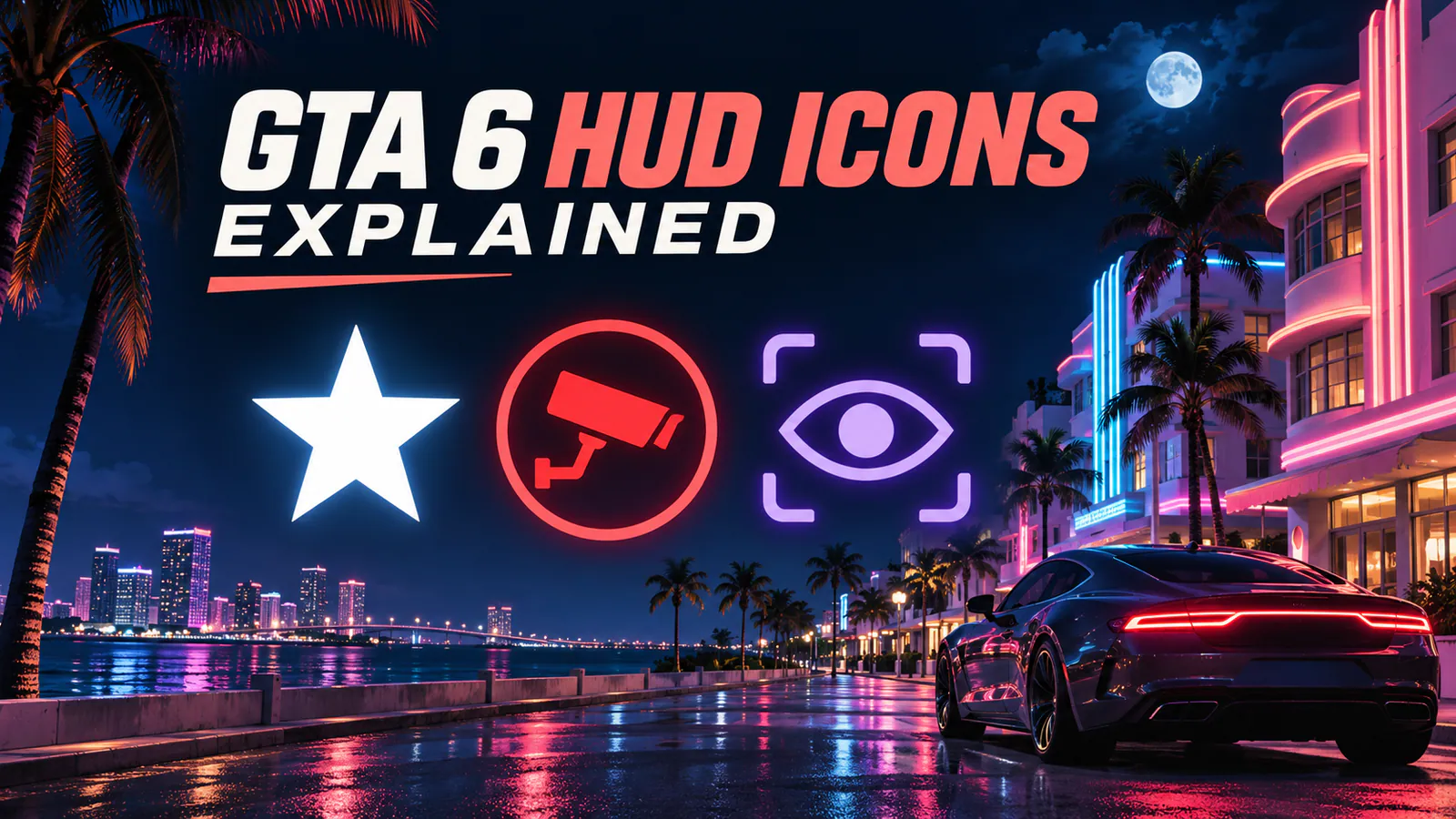
Lose police sight first, then check the red Heat icons before you return to the area. In GTA 6 story mode, a chase can end while police still remember details such as your car or clothes. Check the map for the marked area and use the icons under the wanted stars to decide what to change.
The six GTA 6 Wanted states
The star count shows how serious the response is. The state shows what the game’s police know and whether they’re still chasing your character.
| State | What’s happening |
|---|---|
| Cops responding | Officers are heading to the reported incident. |
| Suspect unknown | Officers know about the incident and lack a positive identification. |
| In pursuit | Officers have identified your character and are actively chasing them. |
| Visual lost | Officers have lost sight of your character and are still searching. |
| Heat | The active chase has ended and the area remains under attention. |
| Heat and suspect unknown | The area remains marked and the police lack your character’s description. |
What the red Heat icons mean
| Icon | What the game is tracking | What to try in-game |
|---|---|---|
| Face or single silhouette | Appearance | Change recognizable accessories or hairstyle. |
| Clothes hanger | Outfit | Change clothes, including from a spare outfit in your personal car. |
| Car | Vehicle | Change vehicles. A respray can help when that option is available. |
| Weapon | Visible weapon | Put it away or stow a long gun. |
| Two silhouettes | Recognized pair | Separate Jason and Lucia when free roam allows it. |
| CCTV | Local recording | Check whether the game gives you an interaction with the recording. |
| Cloud CCTV | Cloud recording | Leave the marked area and let the Heat subside. |
Why police start looking again after you lost your stars
A marked area can stay hot after pursuit ends. If police spot a detail they recognize there, the chase can resume. Check your active red icons before driving through the same area again. A spare outfit helps with clothing recognition, and the vehicle icon tells you when you should also change cars.
For the rest of the on-screen symbols, use the GTA 6 HUD icons guide.